Easing Functions: Make Game Motion Feel Alive
What are easing functions? Learn ease-in, ease-out, and overshoot curves, when to use each in games and UI, and how to avoid the classic frame-rate lerp bug.
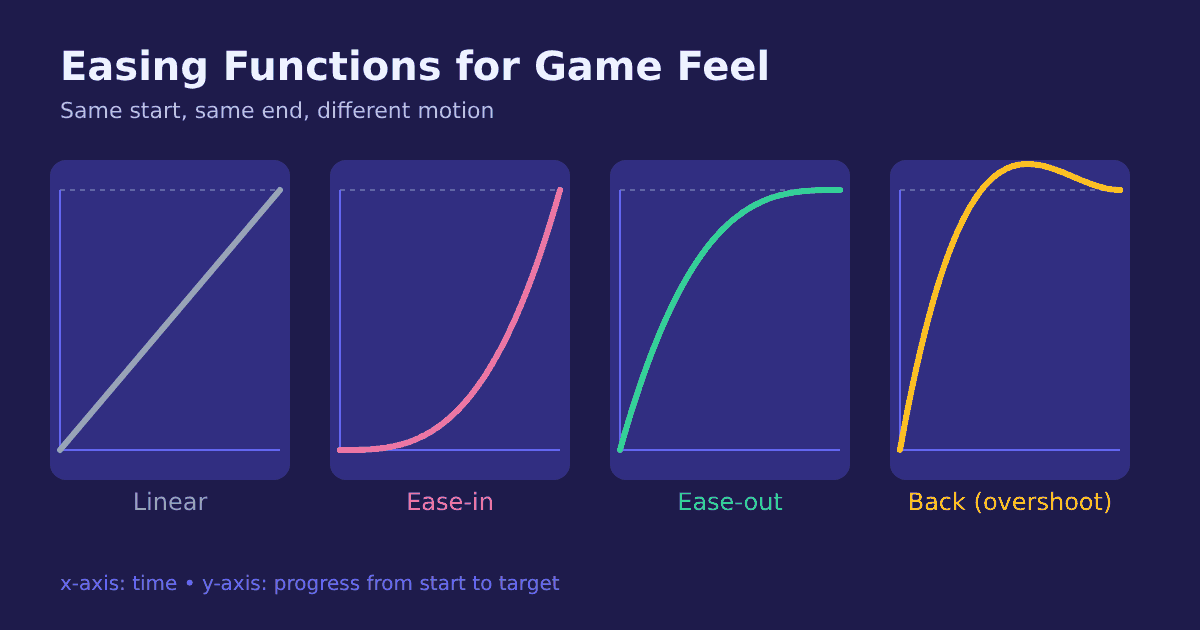
Move a menu panel from left to right at a constant speed and it looks stiff, like a slide on a conveyor belt. Give the same movement a quick start and a soft landing, and it suddenly feels polished. The difference is an easing function, one of the cheapest ways to improve how a game feels.
What is an easing function?
An animation moves something from a start value to an end value over time. At any moment you know how far along you are, as a number t from 0 to 1. Without easing, progress equals time: halfway through the duration, the object is halfway there. That is linear interpolation, or lerp.
An easing function reshapes t before you use it. It changes the speed along the way while the start and end stay the same.
function easeOutCubic(t) {
  return 1 - Math.pow(1 - t, 3);
}

const t = Math.min(elapsed / duration, 1);
x = lerp(startX, endX, easeOutCubic(t));
Many of the standard curves used today trace back to Robert Penner's easing equations, first popularized in Flash animation. The site easings.net shows them side by side with live previews.
The main easing types
Ease-out: fast start, gentle stop
Motion begins quickly and slows down as it arrives. It feels responsive because the reaction is immediate. Use it for things entering the screen and for anything that answers player input, like a popup, a collected coin flying to the HUD, or a camera snapping to a target.
Ease-in: slow start, fast finish
Motion builds up speed, like an object starting to fall. Use it for things leaving the screen. Avoid it for responses to input, because the slow start reads as lag.
Ease-in-out: soft on both ends
Slow, fast, then slow again. It suits camera pans between two points and cutscene moves, where both the departure and the arrival should feel calm.
Back, elastic, and bounce
Back overshoots the target slightly and settles. Elastic wobbles like a spring. Bounce hits the end and rebounds. They add personality to buttons, rewards, and cartoon-style games, but use them sparingly or the interface feels noisy.
Easing in your engine
You rarely need to write curves by hand:
Godot: the Tween class lets you combine a transition type (such as back or elastic) with an ease direction (in, out, or in-out).
Unity: an AnimationCurve lets designers draw a custom curve in the Inspector and sample it from code.
Web and UI: CSS supports
ease-in,ease-out,cubic-bezier(), and more, as listed in MDN's easing function reference.
The classic lerp bug
A popular shortcut for smooth following is to move a fraction of the remaining distance every frame:
// Frame-rate dependent
x += (target - x) * 0.1;
It looks nice, but the speed changes with the frame rate. At 120 FPS the object catches up much faster than at 30 FPS. The fix is to scale by time, a topic we cover in depth in our article on delta time:
// Frame-rate independent
x += (target - x) * (1 - Math.exp(-speed * dt));
Practical tips
Default to ease-out. When unsure, it is the safest choice for interactive motion.
Keep UI animations short. The Nielsen Norman Group's guidance on animation duration suggests most interface animations stay within a few hundred milliseconds. Players should never wait for a menu.
Match the curve to the material. Heavy objects ease slowly; light, bouncy objects can overshoot.
Ease more than position. Scale, rotation, color, and volume all benefit from the same curves.
Compare side by side. Record a linear and an eased version and watch them back to back. The difference is usually obvious.
Easing does not change where things go. It changes how they feel getting there.
Keep exploring
Easing is one ingredient of game feel, together with tricks like coyote time and input buffering. See the games we are building at Ryuartistry.