Delta Time: Keep Game Speed Consistent at Any FPS
Learn how delta time and fixed timesteps keep game movement and physics consistent at 30, 60, or 144 FPS, with practical tips for Unity and Godot developers.
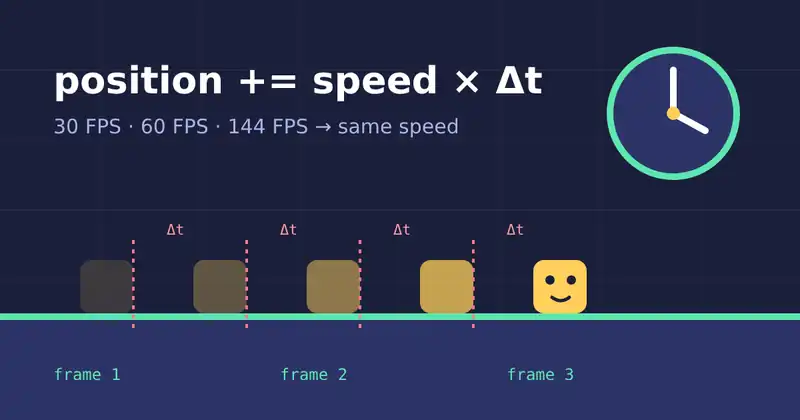
Have you ever played an old game on a fast PC and watched everything run in fast-forward? That happens when movement is tied to the frame rate. Modern games avoid it with one small idea: delta time. Here is what it is, why it matters, and how to use it without falling into the common traps.
The problem: speed tied to frames
Imagine a character that moves 5 pixels every frame. At 30 FPS it travels 150 pixels per second. At 144 FPS it travels 720 pixels per second, almost five times faster. The same code now plays differently on every device, which breaks difficulty, multiplayer fairness, and speedruns.
Robert Nystrom's free book Game Programming Patterns describes this as the core challenge of the game loop: the game must run at a consistent speed even though hardware does not.
What delta time actually is
Delta time (often written dt or Δt) is the time that passed since the previous frame, usually in seconds. Instead of moving "5 pixels per frame", you move "300 pixels per second" and scale it by delta time:
position += speed * deltaTimeAt 60 FPS, delta time is about 0.0167 seconds, so the character moves 5 pixels per frame. At 30 FPS it is about 0.033 seconds, so it moves 10 pixels per frame. Either way, it covers 300 pixels every second.
Where to find it in popular engines
Unity: Time.deltaTime inside
Update().Godot: the
deltaparameter of_process(delta)and_physics_process(delta), explained in the Godot docs on idle and physics processing.Unreal Engine: the
DeltaSecondsvalue passed to an actor'sTickfunction.
Variable vs fixed timestep
Delta time works well for visuals and simple movement, but physics prefers stability. A collision check that runs with a huge time step after a lag spike can let a fast object pass straight through a wall. That is why most engines run physics on a fixed timestep.
Unity runs FixedUpdate at a default interval of 0.02 seconds, or 50 times per second.
Godot runs physics at 60 ticks per second by default.
Glenn Fiedler's classic article Fix Your Timestep! explains the standard technique: collect real elapsed time in an accumulator, run physics in fixed slices, then interpolate between the last two physics states so rendering stays smooth.
Five tips to avoid delta time bugs
Use the right update for the job. Read input and animate visuals in the regular update. Apply forces and move physics bodies in the fixed update.
Clamp huge delta values. After a pause, a loading hitch, or a breakpoint, delta time can jump to a full second or more. Cap it (for example at 0.1 seconds) so objects do not teleport.
Do not multiply twice. If an engine function already accounts for time, such as many physics velocity APIs, multiplying by delta time again makes things painfully slow.
Be careful with smoothing. The popular
lerp(current, target, 0.1)each frame is frame-rate dependent. A frame-independent version uses exponential decay:lerp(current, target, 1 - exp(-sharpness * dt)).Test at different frame rates. Lock your game to 30, 60, and an uncapped rate, then compare jump height and movement distance. If they differ, something still depends on frames.
Good timing is invisible. Players only notice it when the same jump feels different on two machines.
Why this matters for game feel
Consistent timing is the foundation for everything that makes controls satisfying. Effects like hit stop, coyote time, and input buffering all rely on accurate time measurements. Read our guide to game feel and the small effects that make a game satisfying, and see how we handle soft physics in the Mochi Island devlog.
Keep exploring
Once your timing is solid, put it in front of real players. Our playtesting tips help you spot movement that feels off. You can also explore the games and tools we build at Ryuartistry.